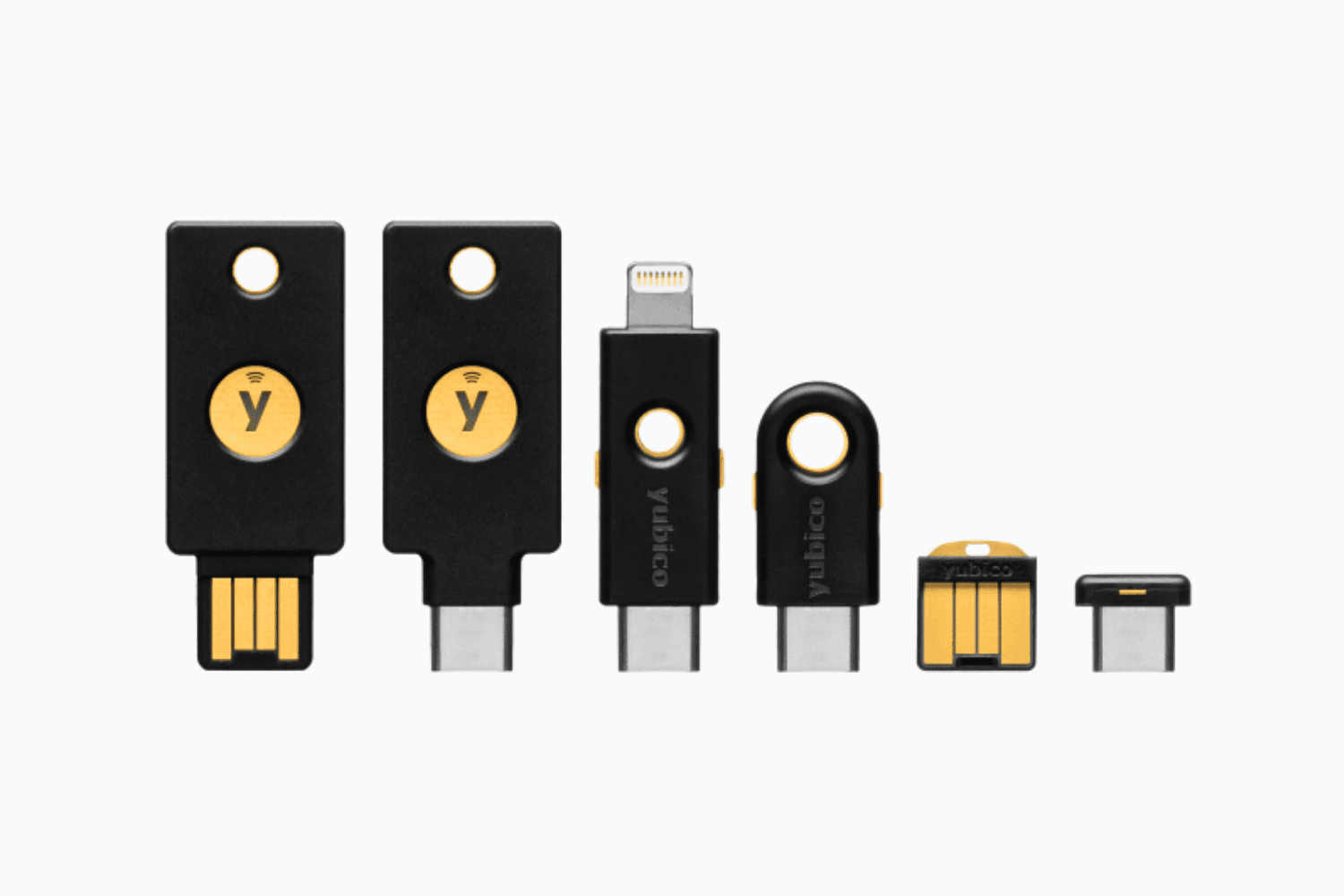
Nextcom supports passkeys stored on compatible FIDO2 security keys, including YubiKey security keys. When passkey sign-in is permitted by your organization, you can use a security key instead of a password or as an alternative to other permitted sign-in methods.
Secure sign-In with YubiKey
A YubiKey is the physical security key. The passkey is the credential stored securely on it. The private key remains on the YubiKey, while Nextcom stores the corresponding public key used to verify your identity.
A Nextcom account where passkey sign-in is permitted.
A YubiKey that supports FIDO2/WebAuthn.
A FIDO2 PIN configured on the YubiKey.
A modern browser with WebAuthn support.
Physical access to the YubiKey during registration and sign-in.
Older keys that support only U2F cannot be used for this type of passkey registration.
We recommend registering more than one security key. Keep the second key in a secure location so that it can be used if your primary key is lost, damaged or unavailable.
Register a YubiKey
Sign in to Nextcom.
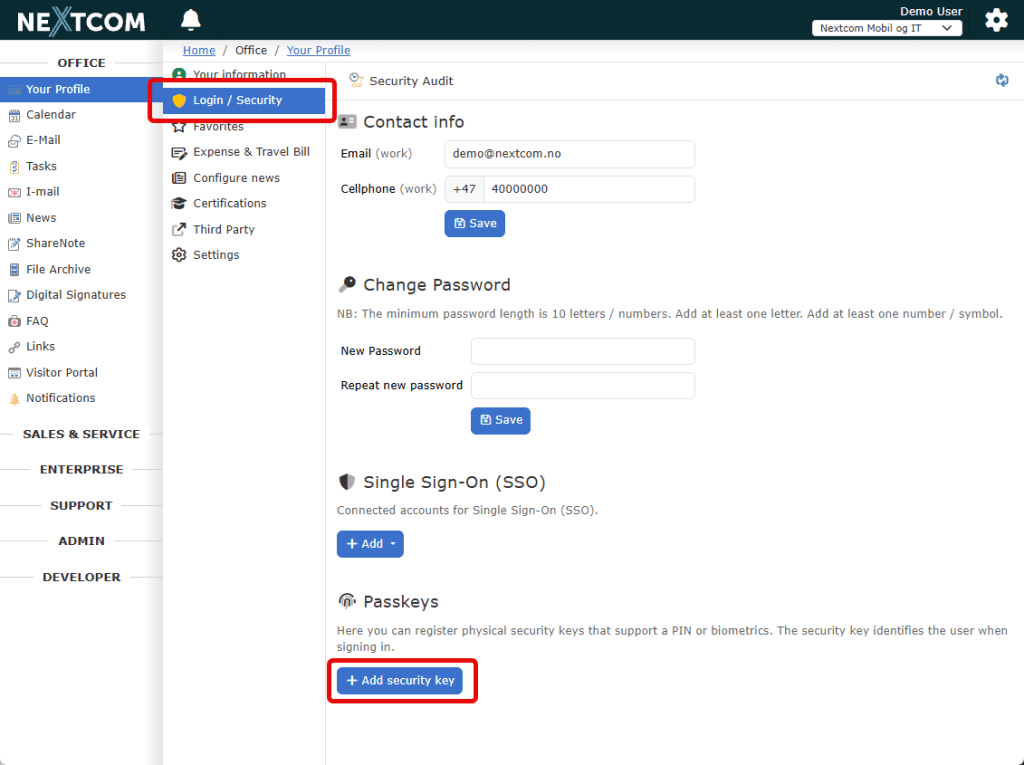
Open Your Profile and select Login / Security.
Complete the additional identity verification. Nextcom requires recent verification before allowing access to security-sensitive account settings.
Find the Passkeys section and select Add security key.
If your browser asks which type of passkey you want to create, select Security key.
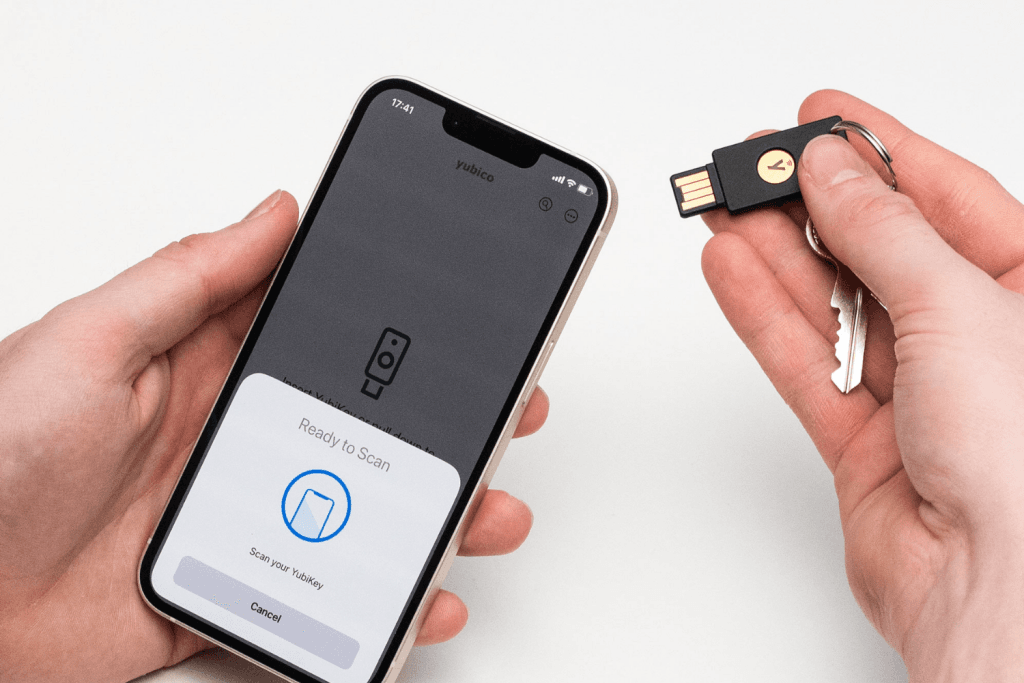
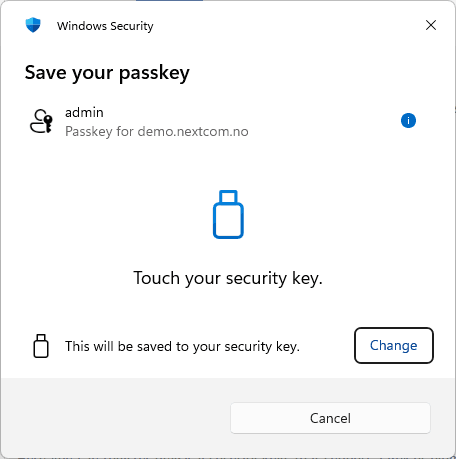
Insert the YubiKey into your device, or hold it near the NFC reader on a supported mobile device.
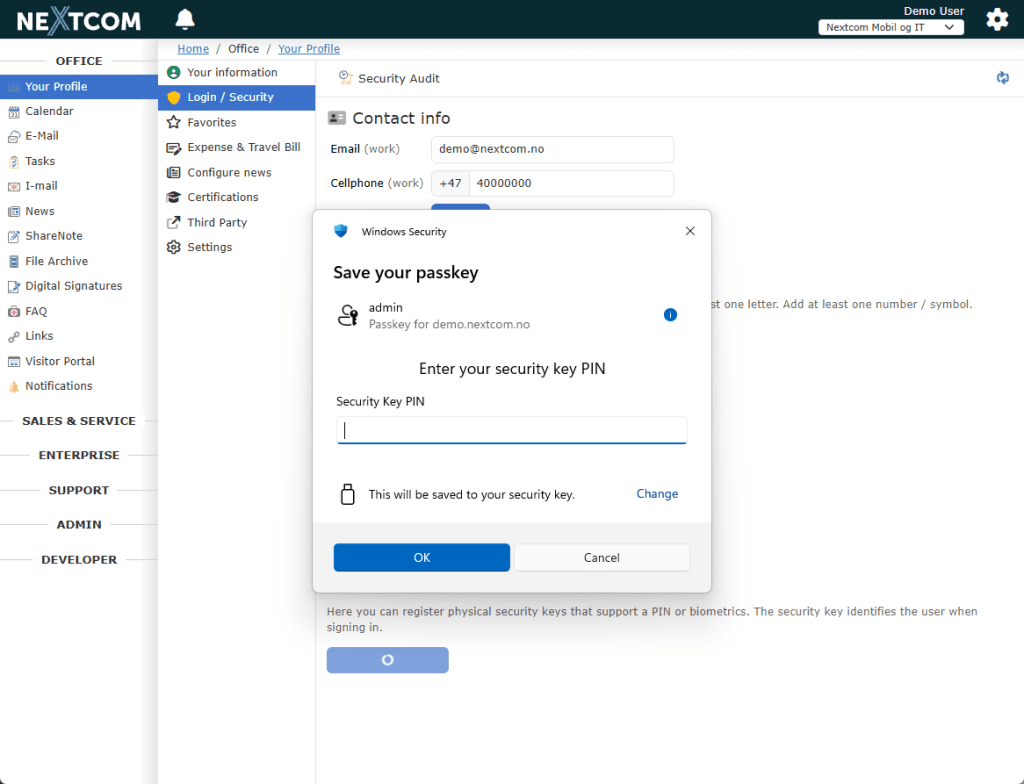
Follow the instructions from your browser or operating system. You may be asked to enter the FIDO2 PIN and touch the security key.
When registration is complete, give the key a recognizable name, such as:
Office YubiKey
Portable YubiKey
Backup security key
The key will now appear in the passkey list in Nextcom.
Security notifications
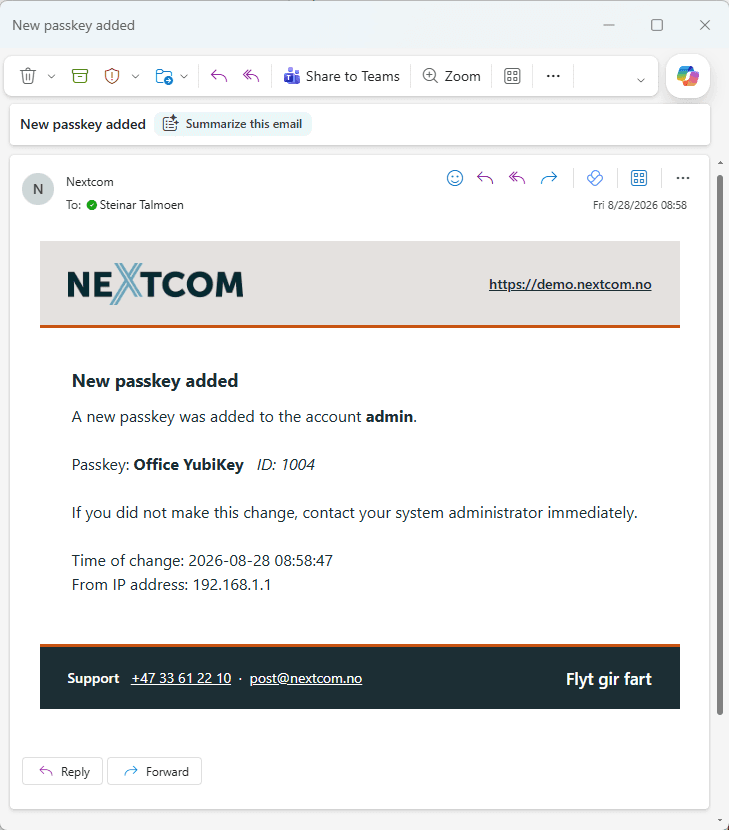
If your Nextcom account has a registered email address, Nextcom sends a security notification when a passkey is added.
Nextcom also sends a notification when you remove a passkey from your own profile.
The notification contains information such as the account, time and source IP address. If you receive a notification about a change you did not make or authorize, contact your Nextcom administrator immediately.
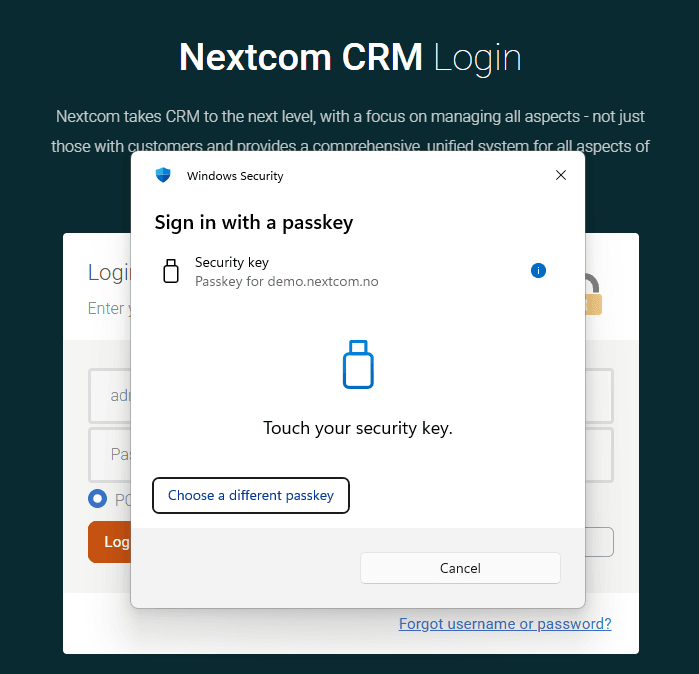
Sign in with a YubiKey
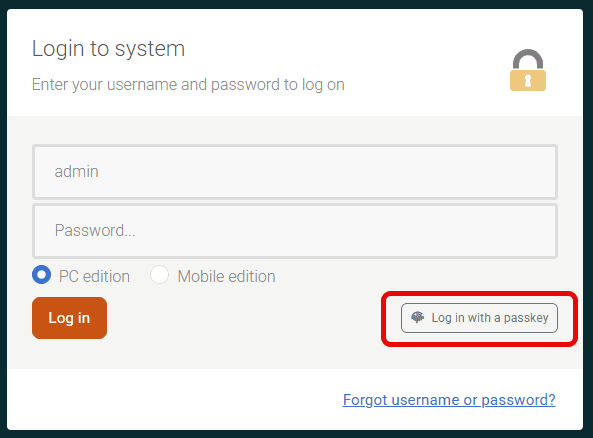
Open your normal Nextcom login page.
Enter your username if requested.
Click Log in with a passkey.
When prompted, select Security key.
Insert or present the registered YubiKey.
Enter the FIDO2 PIN if requested, then touch the key.
Nextcom verifies the signed response and signs you in without receiving or storing your FIDO2 PIN.
The wording and appearance of the security prompt may differ depending on your browser, operating system and device.
Manage your passkeys
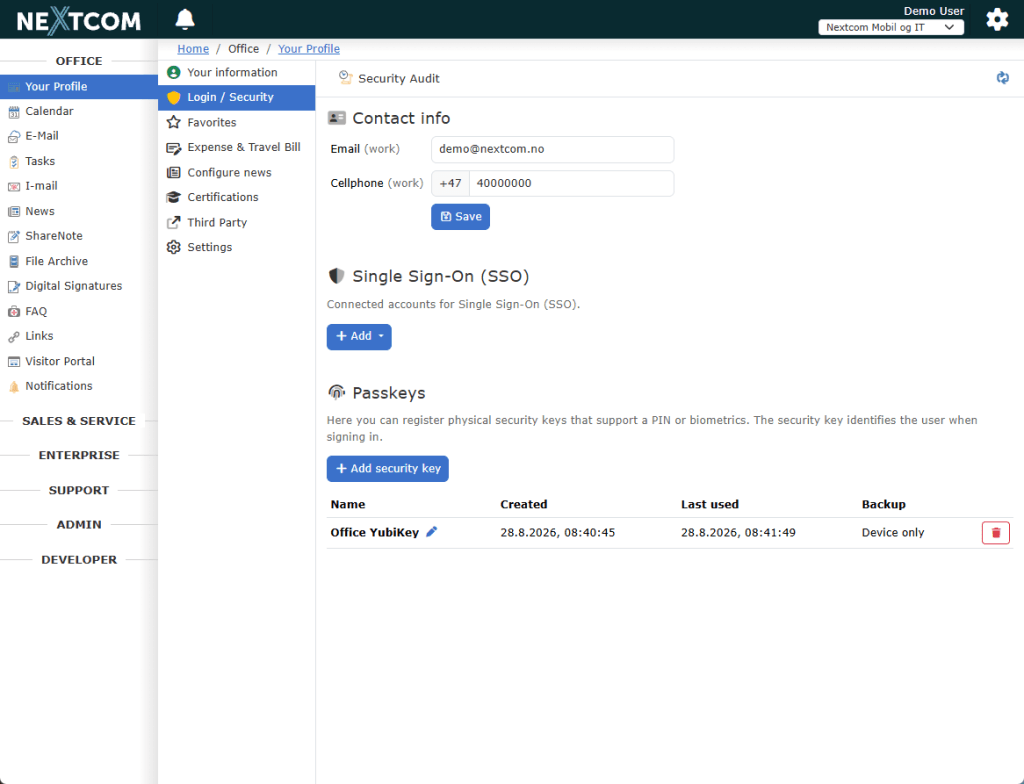
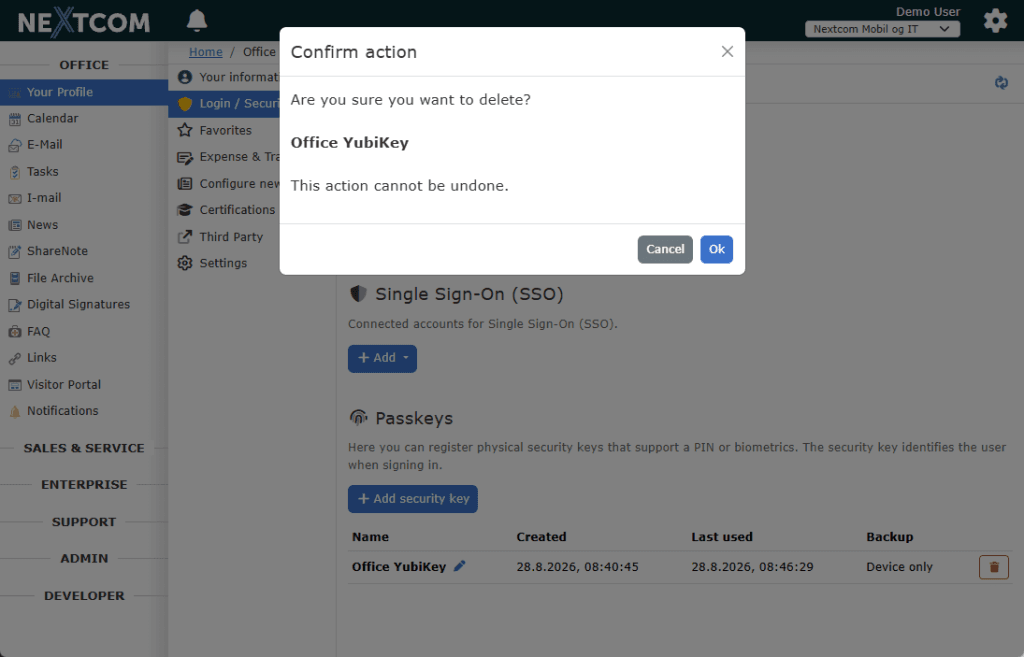
Open Your Profile and select Login / Security to view your registered passkeys.
For each passkey, Nextcom displays:
Name – the name used to identify the key.
Created – when the passkey was registered.
Last used – when it was last used to authenticate.
Backup – whether the passkey can be backed up or synchronized.
For a physical YubiKey, the backup status will normally be Device only. This means that the passkey is stored on the security key and is not synchronized through a cloud account. It does not mean that the passkey is incomplete or incorrectly configured.
Use the pencil icon to rename a passkey. Use the trash icon to remove it from your Nextcom account.
Removing a passkey in Nextcom prevents it from being used for that account. Removing a passkey from Nextcom does not erase the credential stored on the physical YubiKey. FIDO2 credentials stored on the key can be managed separately with Yubico Authenticator.
The same YubiKey can be registered again later.
Before removing your final passkey, make sure that you have another permitted sign-in method or that an authorized administrator can assist you.
Lost or stolen security keys
If a YubiKey is lost or stolen:
Sign in using another registered security key or another permitted sign-in method.
Open Your Profile and select Login / Security.
Remove the missing key from your account immediately.
If you cannot sign in, contact an authorized Nextcom administrator. The administrator can remove the missing key and help you register a replacement.
Possession of the key alone is normally not sufficient to sign in because user verification, such as the FIDO2 PIN, is also required.
Registration by an administrator
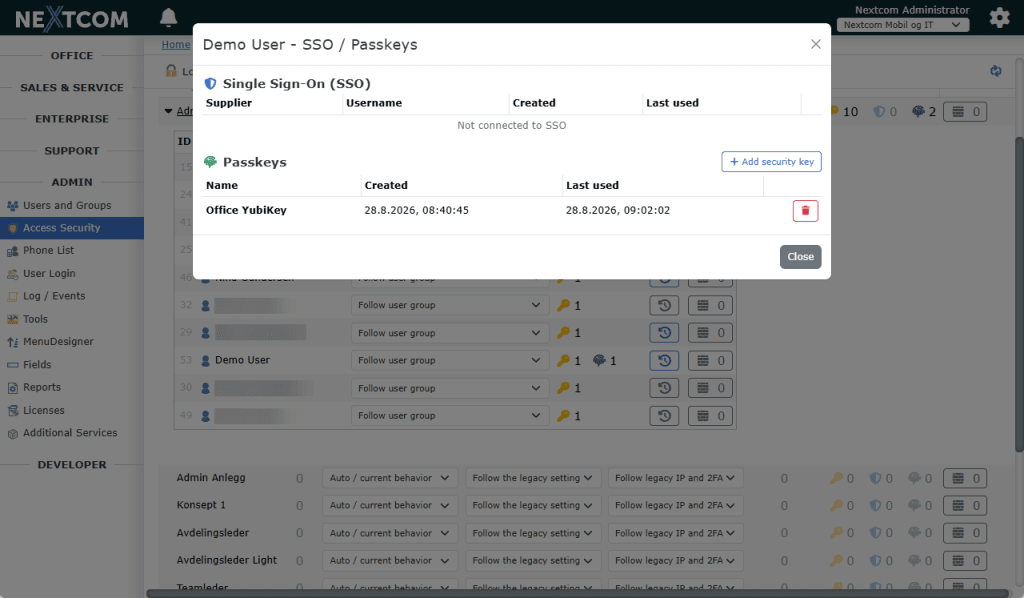
An authorized Nextcom administrator can register or remove a security key on behalf of another user.
The administrator opens Access Security, finds the relevant user and opens the user’s Active methods. A new security key can then be registered from the Passkeys section.
For security, the user should be present during registration and should personally:
Present the security key.
Enter the FIDO2 PIN.
Touch the key when requested.
The administrator does not need to know or handle the user’s FIDO2 PIN.
Registering a security key does not automatically change the user’s permitted sign-in methods. The user or user group login policy must also allow passkey sign-in.
Troubleshooting
The security key is not recognized
Make sure that:
You are using the same key that was registered for the account.
The key supports FIDO2/WebAuthn.
The key is inserted correctly or placed close enough to the NFC reader.
You selected Security key in the browser prompt.
Passkey sign-in is permitted for your account.
The option to add a security key is not displayed
Passkey registration may not be permitted by your organization’s login policy. Contact your Nextcom administrator.
The option to log in with a passkey is not displayed
Your account may not have an active passkey registered, or passkey sign-in may not be permitted by the current login policy.
The browser asks for a PIN
Enter the FIDO2 PIN configured on the YubiKey. This is not your Nextcom password.
If the key does not have a FIDO2 PIN, it can be configured using Yubico Authenticator.
The authentication window was closed
Start the operation again from Nextcom. Closing or cancelling the browser or operating-system prompt does not change the registered passkeys.
Need help?
Contact your Nextcom administrator if you cannot register, use or remove a security key, or if you suspect that someone has made an unauthorized change to your account.